Quick answer
The best free SEO tools in 2026 are Google Search Console, Google Analytics 4, PageSpeed Insights, Google Trends, Ubersuggest, Keywords Everywhere and the Yoast SEO plugin. Together they cover keyword research, technical checks, page speed and tracking. No free tool can guarantee a first-page ranking, but these show you exactly what to fix and what to write next.
In this blog we will go through:
- Google Search Console
- Google Analytics 4
- PageSpeed Insights
- Google Trends
- Ubersuggest
- Keywords Everywhere
- Yoast SEO plugin
- How to use them together
- Which tool should you start with?
- Common mistakes
- FAQs
What is SEO, and why do free tools matter?
Search engine optimization (SEO) is the work of making your website easier for search engines to find, understand and rank, so that people discover it without paid ads. It has three parts:
On-page SEO: page titles, headings, content, images and internal links.
Off-page SEO: backlinks, brand mentions and reviews from other sites.
Technical SEO: crawling, indexing, site speed, mobile usability and structured data.
Free tools matter because most of the useful data comes straight from Google. If you are a student, a freelancer or a small business, you can run a complete SEO process without paying for a suite.
SEO is also changing. Search results now include AI-generated answers, and tools like ChatGPT, Gemini and Perplexity cite web pages. The same basics still apply: clear answers, accurate facts, fast pages and a trustworthy author. The tools below help with all of them.
The 7 free SEO tools at a glance
Tool Best for What you get free Main limit:
- Google Search Console Seeing how Google views your site Search queries, clicks, positions, indexing and Core Web Vitals reports Only your own site, no competitor data
- Google Analytics 4 Measuring what visitors do Traffic sources, landing pages, conversions Needs setup, does not show search keywords itself
- PageSpeed Insights Speed and mobile experience Core Web Vitals and fix suggestions per URL One URL at a time
- Google Trends Choosing topics and timing Interest over time, region, related queries Relative scores, not search volumes
- Ubersuggest Keyword ideas Volume, difficulty and suggestions Limited free searches per day
- Keywords Everywhere Keyword data inside Google Volume, CPC and related keywords in the browser Data uses a credit system, so check current pricing
- Yoast SEO plugin On-page SEO on WordPress Title and meta editor, XML sitemap, readability checks Green lights do not guarantee rankings
Google Search Console
What it is: A free tool from Google that shows how your website appears in Google Search.
Best for: Finding the keywords you already rank for, and spotting pages that are close to page one.
How to use it:
- Verify your site, then submit your XML sitemap under Sitemaps.
- Open Performance > Search results and look at the Queries tab.
- Filter for queries with an average position between 8 and 20. These are your quickest wins.
- Rewrite the page title and meta description for those pages so they match the query and invite the click.
- Use URL Inspection to check a page is indexed, and to request indexing after a big update.
- Check Page indexing and Core Web Vitals monthly for errors.
Limit: It shows only your own site, and it keeps about 16 months of data, so export reports you want to keep.
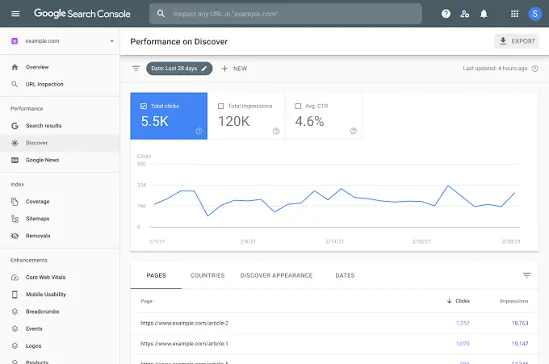
Google Analytics 4 (GA4)
What it is: Google’s free analytics tool. It shows who visits your site and what they do there.
Best for: Proving that SEO brings leads, not just traffic.
How to use it:
- Install the GA4 tag (Site Kit by Google, which this site already uses, can do this).
- Go to Reports > Acquisition > Traffic acquisition and look at the Organic Search row.
- Open Engagement > Landing pages to see which pages bring organic visitors.
- Mark important actions, such as a form submission or a WhatsApp click, as key events.
- Link GA4 with Search Console so you can see queries and behaviour together.
Limit: GA4 has a learning curve, and it does not show search keywords by itself. That is why you pair it with Search Console.
Google PageSpeed Insights
What it is: A free tool that tests how fast and stable a page is on mobile and desktop.
Best for: Finding speed problems that hurt rankings and visitors.
How to use it:
- Paste a page URL and open the Mobile tab first.
- Read the Core Web Vitals. A good result is LCP under 2.5 seconds, INP under 200 ms and CLS under 0.1.
- Look at field data (real users) when it is shown, and treat lab data as a guide.
- Work through Opportunities and Diagnostics: compress images, reduce unused scripts, and fix layout shifts caused by pop-ups and banners.
- Re-test after each change.
Limit: It tests one URL at a time. Test your most important pages: home, course pages and top blog posts.
Google Trends
What it is: A free tool that shows how interest in a search term changes over time and across regions.
Best for: Choosing which topics to write about and when to publish them.
How to use it:
- Set the region to India and the period to the past 12 months or 5 years.
- Compare 2 to 5 terms, such as “SEO course”, “digital marketing course” and “AEO”.
- Check Related queries and Rising topics for new ideas.
- Switch the search type to YouTube Search to plan video topics.
Limit: Trends shows relative interest on a 0 to 100 scale, not the number of searches. Confirm volume with another tool.
Ubersuggest
What it is: A keyword research tool from Neil Patel with a limited free plan.
Best for: Turning a keyword you already rank for into many related ideas.
How to use it:
- Take a query from Search Console, such as “free seo tools”.
- Enter it in Ubersuggest and look at volume, difficulty and the keyword ideas list.
- Pick long-tail variations, such as “free SEO tools for beginners”, that match a single clear question.
- Create one section or one new post for each strong idea.
Limit: The free plan has a daily search limit, and its numbers are estimates. Use them to compare keywords, not as exact figures.
Keywords Everywhere
What it is: A browser extension that shows keyword data directly on Google results pages.
Best for: Quick checks while you research, including related keywords and “People Also Ask” questions.
How to use it:
- Install the extension in Chrome or Firefox.
- Search for your topic on Google.
- Note the volume, CPC and related keywords in the sidebar.
- Copy the “People Also Ask” questions. These are the questions to answer in your FAQ section.
Limit: The tool’s data now runs on a credit system, so it is not fully free. Check current pricing before you rely on it.
Yoast SEO plugin (WordPress)
What it is: A WordPress plugin that helps you set up on-page SEO.
Best for: Managing titles, meta descriptions, sitemaps and readability without touching code.
How to use it:
- Install and activate the free plugin, then run the setup wizard.
- For every post, write a title of about 60 characters and a meta description of about 150 characters.
- Set a clear focus keyword, and use it naturally in the title, first paragraph and one subheading.
- Make sure the XML sitemap is on, then submit it in Search Console.
- Use the readability check to shorten long sentences.
Limit: A green light is a checklist result. It does not guarantee a ranking. Write for the reader first.
How to use the 7 tools together: a simple workflow
- Set up: Install Search Console, GA4 and Yoast.
- Find opportunities: In Search Console, list queries ranking in positions 8 to 20.
- Expand: Use Ubersuggest and Keywords Everywhere to find related long-tail keywords and questions.
- Validate: Check seasonality and demand in Google Trends (region: India).
- Fix and publish: Update the page, then check speed in PageSpeed Insights.
- Measure: In GA4, track organic visits and leads. Review again after 4 to 6 weeks.
Which tool should you start with?
- New website: Search Console, then Yoast.
- Want more leads: GA4, with key events set for forms and WhatsApp clicks.
- Slow website: PageSpeed Insights.
- Need blog ideas: Google Trends, then Ubersuggest.
- Writing for answer engines: Keywords Everywhere for “People Also Ask” questions.
Tips for businesses in India
- Set the region to India in Google Trends, and filter by country in Search Console, so you see the right audience.
- Test on mobile first. Most Indian users browse on phones, and many on slower connections.
- Check queries written in Hinglish or with city names, such as “seo course in delhi”. They often show strong local intent.
- Keep your business name, address and phone number the same everywhere online.
Common mistakes with free SEO tools

- Chasing green lights: Optimising for Yoast’s score instead of the reader.
- Stuffing keywords: Repeating the same phrase in every paragraph. Use natural language and related terms.
- Ignoring mobile: Checking only the desktop view.
- Tracking rankings, not leads: Rankings matter only if they bring enquiries.
- Never updating: Old posts lose ground. Review your top pages every few months and update the date only when the content really changes.
FAQs: Free SEO Tools
What is the best free SEO tool?
Google Search Console is the best free SEO tool to start with, because it shows real data from Google about your own site: the queries you rank for, clicks, positions and indexing problems. Pair it with Google Analytics 4 to see what visitors do after they arrive.
Are free SEO tools enough to rank on Google?
They are enough to find problems and opportunities, but they do not rank a site by themselves. Rankings come from helpful content, a fast and mobile-friendly site, and trust signals such as quality backlinks. Free tools show you what to improve, and you still have to do the work.
Is Google Search Console really free?
Yes. Google Search Console is completely free for any website owner. You verify your site, submit a sitemap and get reports on search performance, indexing, mobile usability and Core Web Vitals. There are no paid tiers, and the data comes directly from Google.
Which free tool is best for keyword research?
Use Google Search Console for the keywords you already rank for, and Google Trends to check demand. For new ideas, Ubersuggest and Keywords Everywhere show related keywords and questions, but their free access is limited, so check their current plans.
Which free tool checks website speed?
Google PageSpeed Insights. It tests a page on mobile and desktop and reports Core Web Vitals (LCP, INP and CLS), along with suggestions such as compressing images and reducing unused scripts. A good LCP is under 2.5 seconds.
Do I need technical knowledge to use these tools?
No. Most of these tools are beginner-friendly. Basic SEO understanding helps you read the reports, but you can begin with Search Console’s Performance report and PageSpeed Insights’ suggestions, and learn as you go.
Can I check competitors with free tools?
Only partly. Search Console and GA4 show only your own site. Ubersuggest’s free plan offers limited competitor insights, and Google Trends lets you compare brand or topic interest. For detailed competitor backlinks and rankings, paid tools are usually needed.
Do free SEO tools help with AI search (AEO and GEO)?
Indirectly. They help you find the real questions people ask, fix speed and indexing, and keep content fresh. For AI search, also write short direct answers, cite sources, show clear authorship and keep your business details consistent across the web.
Conclusion
You do not need an expensive suite to begin SEO. Start with Google Search Console and GA4, fix your speed with PageSpeed Insights, plan topics with Google Trends and Ubersuggest, collect questions with Keywords Everywhere, and keep your WordPress pages tidy with Yoast. Then repeat the workflow every month.
Want to learn SEO hands-on, including AEO and GEO? Explore our SEO course in Delhi or the full Digital Marketing course, or book a free demo or WhatsApp us on 9971050903.
Visit our website: https://www.ittrainingcoursedelhi.in/